A/B tests
Split people between variants of a paywall, or of anything a feature flag controls, and find out which does better.
An A/B test splits people between variants and measures which one makes more of them reach a goal. A test can change two kinds of things, alone or together:
- A paywall: each variant shows a different paywall at the same paywall location. Voidhash picks each person's variant when their app opens the location, so the app needs no changes.
- A feature flag: each variant gives a feature flag a different value. Your app reads the flag, so this tests anything you build yourself: copy, a layout, the order of onboarding.
A/B tests are in early access. Ask us on Discord, or email support@voidhash.com on a paid plan, to turn them on for your team.
Create a test
Open A/B testing → A/B tests and click New A/B test. Studio asks what you want to test. Whichever you pick, you can add more to the test later.
A paywall
- Pick A paywall, then the Location the test runs at.
- Paywall A is the control, filled in with what the location shows now. Pick Paywall B, the paywall half of the people see instead. Both need a live build; see Build and deploy.
- Choose the Goal: Subscription started for a paywall that sells subscriptions, Purchase completed for one-time products or both kinds, or Another event your app records.
- Click Start test. The location starts splitting people at once, and its page says which test it runs.
The test is named after its two paywalls unless you change the Name, and each variant is named after its paywall. Run A/B test on a paywall location's page opens the same form with the location already chosen.
A feature flag
- Pick A feature flag. Under Feature flag, choose Existing to test a flag you already
have, or New to make one here.
- Existing: pick the flag, then its Control: the value the others are compared with. A flag without variants is tested Off against On. A flag with variants gets one variant of the test for each of its own.
- New: enter the key your app reads, and under Variants the value your app gets for each variant. The first is the control; Add variant adds more than two. This creates a feature flag, listed under Feature flags, that gives everyone outside the test the control's value.
- Choose the Goal. For a flag this is usually An event your app records: type its exact name, and ask your developers if you're unsure.
- Click Start test.
A person is put in a variant the first time their app reads the flag while the test runs, and keeps it. The flag's own page says which test sets it.
- An existing flag has to be switched on in production, or nobody would get the test's values. To keep it off for everyone outside the test, serve it to 0% of everyone else.
- Someone with an override on the flag keeps the override. The test comes before the flag's rules and everyone else.
- A flag can be set by one running test at a time, so a flag another running or paused test sets isn't offered.
- While the test is Paused, everyone gets the control's value. When you Conclude it, the flag gives the winner's value to everyone its rules and overrides don't name.
In either form, Save as draft makes the test without starting it and opens its page. Use it for more than two paywalls, another split, several locations, or a paywall and a flag in one test.
Set up a test on its page
A draft's page opens on the Setup tab. A test made with Save as draft already has its variants and what they change; everything can still be edited.
Describe it
Add a description and a Hypothesis: what you expect to happen, and why.
Choose what each variant gets
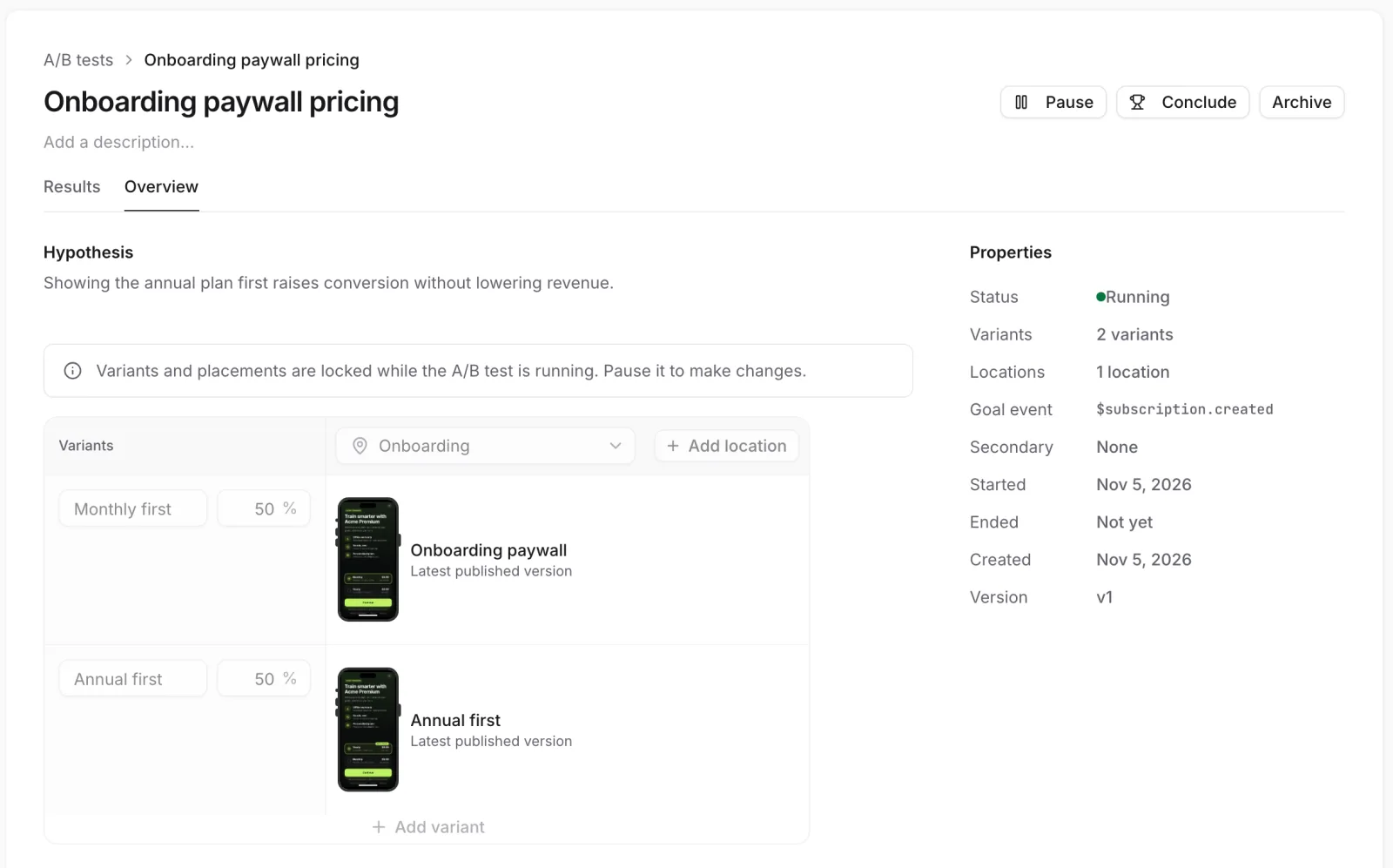 Each variant gets a column and a share of traffic
The grid has a row for each thing the test changes and a column for each variant. A person gets one variant, and so everything in its column. Click Add a change and pick:
- Paywall at a location: the location gets a row. In each variant's cell, click Select paywall and pick the paywall that variant shows there. Every paywall needs a live build.
- Feature flag: the flag gets a row. In each variant's cell, choose the value its people get: Off or On, or for a flag with variants, one of them or The flag's own split. A new row starts at what the flag gives everyone now.
Add as many rows as the test needs. With several, the same variant decides all of them for a person.
Set the split
Give each variant a weight in its column's header; weights must add up to 100%. While they don't, Split evenly divides traffic equally. Add variant adds more than two. The first column is the control, the variant the others are compared with.
Choose the goal
In the properties, set the Goal event: what counts as a conversion. Type the event's code exactly as shown:
- For a paywall that sells subscriptions, type
$subscription.created. It counts Subscription started: every new subscription, free trials included. - For one that sells one-time products, or both kinds, type
$purchase.completed. It counts Purchase completed: every new purchase, but not renewals. - For anything else, type the exact name of an event your app records; ask your developers for it.
Always set the goal before you start. An empty goal counts nothing, and every variant shows 0 conversions.
Secondary events, comma separated, are recorded for reference. Both lock once the test starts.
Save and start
Click Save changes, then Start. The test turns Running, replaces whatever its locations showed, and decides what its flags give people.
A test can't start while a variant's paywall has no live build, or while one of its locations or flags is in another running test. Each location and each flag runs one test at a time.
The list of tests
A/B testing → A/B tests lists every test with what it changes and where it stands:
| Column | Meaning |
|---|---|
| Changes | The paywall locations and feature flags the test changes. |
| Status | See Statuses. |
| People | People who got a variant since the test started. |
| Goal | The event that counts as a conversion. |
| So far | What the results support so far, such as which variant is ahead and by how much. |
| Started | The day the test first started. |
Statuses
| Status | What people get |
|---|---|
| Draft | Nothing changes yet. Everything can be edited. |
| Running | Each person gets their variant's paywalls and flag values. Variants and changes are locked. |
| Paused | Everyone gets the control's, and nobody is counted. Variants can be edited again. |
| Concluded | The test has ended and everyone gets the winner's. Final. |
| Archived | Listed under Archived and All. A running or paused test's locations show no paywall. |
Use Start, Pause, Resume, Conclude, Archive and Restore on the test's page. Conclude is available once the test has started. Conclude a test before you archive it, so its locations keep showing a paywall. Restore brings an archived test back. A test that was running then shows everyone the control's paywall and counts nobody until you Pause and Resume it.
The name, description and hypothesis stay editable until the test is concluded or archived. The change history at the bottom of the Setup tab lists every change, with the user ID of whoever made it, or System, and when; Changes shows the details. Members see "Could not load activity." instead.
How people are assigned
Each person is assigned at random the first time they reach the test, and keeps that variant: on every visit, after they sign in, and once signed in on every device.
- A variant always shows its paywall's current live build. Deploying a new build of that paywall changes the variant while the test runs.
- Changing weights while paused only affects people assigned after you resume. Everyone already assigned keeps their variant.
- Removing a variant gives its people a variant again, by the split as it then is.
- A person whose app is too old to show a variant's paywall sees nothing there and isn't counted.
- People who declined analytics still see a paywall but aren't counted.
Put a tester in a variant
To see one variant yourself, or to give it to a teammate, fix a person to it:
- Open the test's Setup tab and find Testers.
- Click Add tester, choose how the person is named (their app user ID, email or person ID) and enter it, pick the variant, and click Add tester.
A tester always sees that variant, in production and in builds that use a test key, whatever the split says. Testers aren't counted in the results. The variants you can pick are the ones last saved, so save a new variant before fixing someone to it. Remove a tester with the bin beside them.
Read the results
The Results tab opens with a sentence that says where the test stands: which variant is ahead, whether that is settled, and what it would take to settle it. Under it are three figures: People in the test, Reached the goal and Revenue per person.
Below is a row per variant:
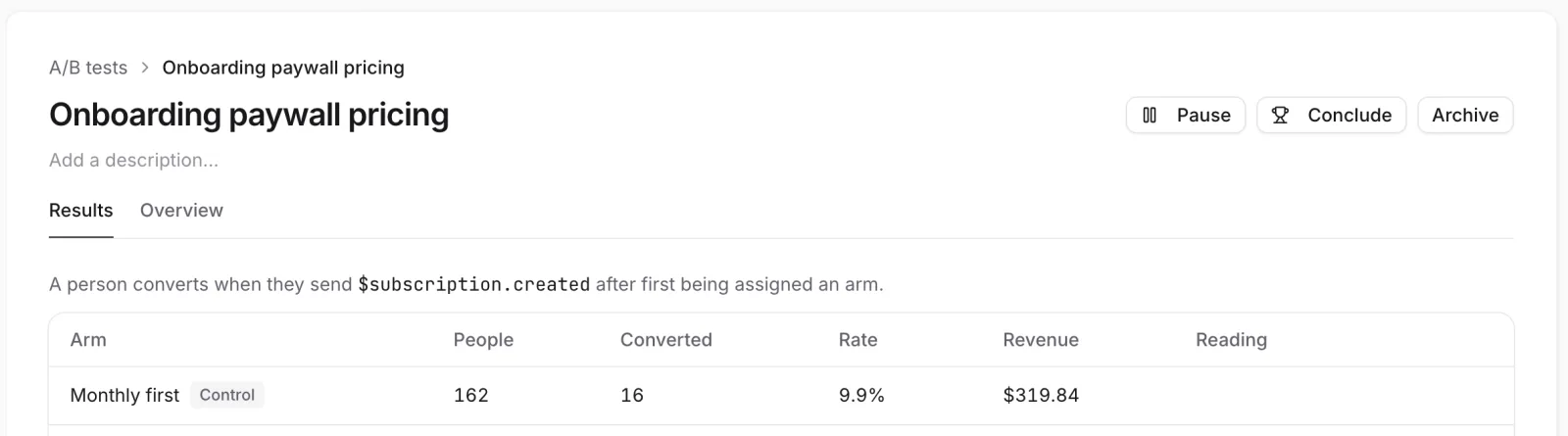 Read the Reading column to see which variant wins
| Column | Meaning |
|---|---|
| People | People who saw the variant, counted in the variant they saw first. |
| Converted | People who reached the goal any time after first seeing it. |
| Rate | Converted divided by People. |
| Revenue | Revenue from those people after they first saw it, in US dollars. |
| Against control | How much better or worse the variant converts, with the range the true difference is likely in. |
| Reading | How the variant compares with the control. |
Reading is one of:
- Better than the control or Worse than the control: the difference is unlikely to be chance (95% confidence). With several variants, each needs a bigger difference, so the chance of any false winner stays at 5%.
- No clear difference: there's enough data, but the difference could still be chance.
- Too early to tell: fewer than 100 people in the variant or the control, or fewer than 10 conversions in the two together.
- Nobody yet: nobody has seen this variant, or the control, yet.
A range in Against control that runs from worse to better means the difference isn't settled yet, whatever the middle number says.
Under the table, Studio says how people split between the variants. If it warns that people aren't splitting as set, something other than the test is deciding who lands where, such as an app version that can't show one variant's paywall. Find the cause before you trust the numbers.
Results cover the time since the test last started or resumed, and only production traffic: people who saw a paywall through a test key, and their simulated purchases, don't appear here. Secondary events aren't analyzed.
Beyond the goal
Under the results, Beyond the goal shows what else the people of each variant did since the test started:
| Row | What it counts |
|---|---|
| People in the variant | Everyone the test gave the variant. |
| Started a subscription | The share of them who started a subscription, trials included. |
| Made a purchase | The share who made a new purchase. |
| Canceled a subscription | The share who canceled one. |
| Got a refund | The share who were refunded. |
| Revenue | What they paid since the test started, per person. |
| MRR | Their monthly recurring revenue now, per person. |
Each variant is compared with the control. A row of people also says Higher than the control, Lower than the control, No clear difference or Too early to tell, at the same 95% confidence as the goal, shared across the rows. Higher isn't always better: more refunds is higher too. Revenue and MRR show the difference without such a reading, so treat it as a hint.
These rows count everyone the test gave a variant, whether or not they opened the paywall, so People in the variant can be higher than People in the results above. They follow the environment Studio is showing.
Compare the variants on other numbers
The goal is one number. To see what the test did to anything else, click Compare in Explore under the results. Explore opens split by the test's variants, each named with its test and its variant. Pick any metric, such as MRR or an event of your own, and read it per variant.
The variants are also listed with your cohorts wherever a chart takes one, so you can choose them yourself: see Split by cohort.
- A variant's people are everyone the test gave it, whether or not they opened the paywall, so these counts can be higher than People in the results.
- Each person counts with everything they did in the period you look at. Set the period to start when the test did.
- Testers you fixed to a variant aren't included.
Conclude a test
Click Conclude, pick the winner under Winning variant (optional) or leave it at No winner, and click Conclude in the dialog. The dialog lists what will change: which paywall each location will show, and what each flag the test set will give everyone. With no winner, it is the control's. A concluded test can't restart; create a new one.
If something's off
- Every variant shows 0 conversions: the Goal event is empty or misspelled. It locks once the test runs, so conclude and start a new test.
- Start does nothing: Studio says why it refused. A variant's paywall has no live build, a location or a flag is already in another running test, a flag the test sets is switched off, or you're a Member.
- People stays at 0: nobody has opened the test's locations or read its flags since it started, or the Experiment exposure event is off in Settings → Events. It's off by default in self-hosted Studio.
- "Failed to create A/B test" or "Failed to save changes": Members can open tests but not change them. See Members and roles.
- Stuck on Too early to tell: too few people reach the test. Run it longer, or for a paywall test add locations.
For developers: tests can also be managed from the CLI or the API (developer docs).
Next steps
Still stuck? Check Troubleshooting, ask us on Discord, or email support@voidhash.com on a paid plan.
Something wrong or missing on this page? Tell us by email or on Discord.